Active directory is the protocol which provides the platform to manage the network environment. Microsoft has done enough amendment to simplify the use of Active Directory in terms of management, migration and deployment.
Important feature of Active Directory include:
· Permission of X.500 close user group professional in the same company.
· Inception of secure data management
· Presence of hierarchical system allows the system administrator to have clean information of individual user accounts
· Object-targeted storage organization, allows easy access for information from anywhere in the network.
Benefits of Active Directory
· Organizations are able to perform their regular business operating while switching over from one network to other network platform.
· Users don’t have to do much amendment in the existing network.
· Existing user accounts and resource permission will be self migrated.
· Services and application running on the existing platform would also get migrated without any effort.
Deployment of Active Directory
User should follow the below suggestion to formulate Active directory over the new server platform.
· Test and verify the deployment process.
· Against the Forest Root create a DNS.
· Create the Forest Root.
· Map a new Regional Domain.
· Import your valuable data from other sources.
Showing posts with label Active directory. Show all posts
Showing posts with label Active directory. Show all posts
Wednesday, January 6, 2010

Wednesday, June 17, 2009
How do I undelete an object from the Active Directory Recycle Bin?
Source: Windowsitpro
Once you've enabled the recycle bin, you can undelete objects that were deleted after the recycle bin was enabled within the deleted object lifetime. You view the objects that are in the deleted and recycled states using the steps outlined in the previous FAQ.
To restore an object in the deleted state (isDeleted TRUE), simply pass the deleted object to the Restore-ADObject cmdlet. The easiest way to pass the object is to use the Get-ADObject cmdlet and pass the -IncludeDeletedObjects switch.
For example, if I know the displayName of an object is Dick Grayson, I would use the command below. PS C:\Users\savadmin> Get-ADObject -Filter {displayName -eq "Dick Grayson"} -IncludeDeletedObjects | Restore-ADObject
As you can see below, I actually use the Get-ADObject first just to view the object. I can see its Deleted attribute is True. I then pass the object to Restore-ADObject to undelete it. After that I viewed the object, and the Deleted attribute was blank, showing that it has been restored. In this example,e the object name was AFRBEnabled (After Recycle Bin Enabled).
Once you've enabled the recycle bin, you can undelete objects that were deleted after the recycle bin was enabled within the deleted object lifetime. You view the objects that are in the deleted and recycled states using the steps outlined in the previous FAQ.
To restore an object in the deleted state (isDeleted TRUE), simply pass the deleted object to the Restore-ADObject cmdlet. The easiest way to pass the object is to use the Get-ADObject cmdlet and pass the -IncludeDeletedObjects switch.
For example, if I know the displayName of an object is Dick Grayson, I would use the command below. PS C:\Users\savadmin> Get-ADObject -Filter {displayName -eq "Dick Grayson"} -IncludeDeletedObjects | Restore-ADObject
As you can see below, I actually use the Get-ADObject first just to view the object. I can see its Deleted attribute is True. I then pass the object to Restore-ADObject to undelete it. After that I viewed the object, and the Deleted attribute was blank, showing that it has been restored. In this example,e the object name was AFRBEnabled (After Recycle Bin Enabled).
Thursday, June 4, 2009
How to Manage Object Properties In Active Directory
Instructions:
- Step 1 :Open the Active Directory Users And Computers tool.
- Step 2: Expand the name of the domain, and select the RD container. Right-click the John Q for example, an admin user account, and select Properties.
- Step 3: Here, you will see the various Properties tabs for the User account. Make some configuration changes based on the personal preferences. Clock OK to continue.
- Step 4: Select the HR Organizational Unit for example. Right-click the All Users group, and click Properties. In the All Users Properties dialog box, you will be able to modify the membership of the group.
- Click the Members tab, and then click Add. Add Monica D. President as an example and John Q. Admin User Accounts to the Group. Click OK to save the settings and then OK to accept the group modifications.
- Step 5: Select the Sales Organizational Unit,. Right-click the Workstation1 Computer object. Notice that you can choose to disable the account or reset it( to allow another computer to join the domain under the same name). From the right-click menu, choose Properties. You'll see the properties for the Computer object.
Examine the various options and make changes based on your properties on your personal preference. After you have examined the available options, click the OK button. - Step 6: Select the Corporate Organizational Unit. Right-click the Monica D. President User account, and choose Reset Password. You will be prompted to eneter a new password and then asked to confirm it. Note that you can also force the user to change this password upon the next logon.
- Step 7: Close the Active Directory Users And Computers tool and this lesson is complete.
Friday, May 29, 2009
Techplus takes on Active directory tools from Specops
Techplus, has brought on management products from Toronto-based vendor, Specops, in a bid to expand its software portfolio.
The distributor will have access to the full software range and has just announced the availability of Specops Virtual Deploy, a Group Policy extension tool that allows administrators to manage Microsoft App-V virtual applications.
Specops provides a range of products allowing organisations to manage and interact with all Microsoft-based server environments through Active Directory or Group Policy platform. Techplus managing director, Paul Kern, said it was Specop’s first local channel partner.
“They have sold products in Australia to some of the larger government departments and multinationals for many years,” he said. “Customers could go online and buy it. But they’ve never been through the channel, or proactively sold products here before.”
Kern said the products were suitable for any organisation – small or large – running Microsoft servers, and claimed they were straightforward to use.
“The core differentiation against other vendors who provide these kinds of products is that users can manage everything through Active Directory – it’s just not an application on top, but a fully integrated solution,” he said.
Specop’s software tools are available for a one-off licence fee. Users can then choose to subscribe to an annual maintenance and support package.
Source: arnnet.com.au
The distributor will have access to the full software range and has just announced the availability of Specops Virtual Deploy, a Group Policy extension tool that allows administrators to manage Microsoft App-V virtual applications.
Specops provides a range of products allowing organisations to manage and interact with all Microsoft-based server environments through Active Directory or Group Policy platform. Techplus managing director, Paul Kern, said it was Specop’s first local channel partner.
“They have sold products in Australia to some of the larger government departments and multinationals for many years,” he said. “Customers could go online and buy it. But they’ve never been through the channel, or proactively sold products here before.”
Kern said the products were suitable for any organisation – small or large – running Microsoft servers, and claimed they were straightforward to use.
“The core differentiation against other vendors who provide these kinds of products is that users can manage everything through Active Directory – it’s just not an application on top, but a fully integrated solution,” he said.
Specop’s software tools are available for a one-off licence fee. Users can then choose to subscribe to an annual maintenance and support package.
Source: arnnet.com.au
Tuesday, May 12, 2009
Windows Server 2008: Install Active Directory Domain Services
Active Directory provides the structure to centralize the network and store information about network resources across the entire domain. Active Directory uses Domain Controllers to keep this centralized storage available to network users.
In this scenario we are going to install Active Directory fresh with a brand new Domain Controller after a fresh install of Windows Server 2008.
Requirements for Active Directory Domain Services
Let’s go through some of the requirements for a fresh install of active directory services. Some of these will be required to be done before hand; others as noted can be done during the install:
* Install Windows Server 2008
* Configure TCP/IP and DNS networking configurations
* The disk drives that store SYSVOL must be on a local drive configured NTFS
* Active Directory requires DNS to be installed in the network. If it is not already installed you can specify DNS server to be installed during the Active Directory Domain Services installation.
Once you verify that these requirements have been met we can get started.
Install Active Directory Domain Services via Server Manager
For the first example let’s start by installing Active Directory through Server Manager. This is the most straight forward way, as a wizard will guide you through the steps necessary.
1. Start Server Manager.
2. Select Roles in the left pane, then click on Add Roles in the center console.
3. Depending on whether you checked off to skip the Before You Begin page while installing another service, you will now see warning pages telling you to make sure you have strong security, static IP, and latest patches before adding roles to your server.
If you get this page, then just click Next.
4. In the Select Server Roles window we are going to place a check next to Active Directory Domain Services and click Next.
5. The information page on Active Directory Domain Services will give the following warnings, which after reading, you should click Next:
* Install a minimum of two Domain Controllers to provide redundancy against server outage (which would prevent users from logging in with only one)
* AD DS requires DNS which if not installed you will be prompted for
* After installing AD DS you must run dcpromo.exe to upgrade to a fully functional domain controller
* Installing AD DS will also install DFS Namespaces, DFS Replication, and Filer Replication services which are required by Directory Service
6. The Confirm Installation Selections screen will show you some information messages and warn that the server may need to be restarted after installation.
Review the information and then click Next.
7. The Installation Results screen will hopefully show Installation Succeeded, and an additional warning about running dcpromo.exe (I think they really want us to run dcpromo).
After you review the, click Close.
8. After the Installation Wizard closes you will see that server manager is showing that Active Directory Domain Services is still not running. This is because we have not run dcpromo yet.
9. Click on the Start button, type dcpromo.exe in the search box and either hit Enter or click on the search result.
10. The Active Directory Domain Services Installation Wizard will now start.
There are links to more information if you want to learn a bit more you can follow them or you can go ahead and click Use advanced mode installation and then click Next.
For more detail: Source
In this scenario we are going to install Active Directory fresh with a brand new Domain Controller after a fresh install of Windows Server 2008.
Requirements for Active Directory Domain Services
Let’s go through some of the requirements for a fresh install of active directory services. Some of these will be required to be done before hand; others as noted can be done during the install:
* Install Windows Server 2008
* Configure TCP/IP and DNS networking configurations
* The disk drives that store SYSVOL must be on a local drive configured NTFS
* Active Directory requires DNS to be installed in the network. If it is not already installed you can specify DNS server to be installed during the Active Directory Domain Services installation.
Once you verify that these requirements have been met we can get started.
Install Active Directory Domain Services via Server Manager
For the first example let’s start by installing Active Directory through Server Manager. This is the most straight forward way, as a wizard will guide you through the steps necessary.
1. Start Server Manager.
2. Select Roles in the left pane, then click on Add Roles in the center console.
3. Depending on whether you checked off to skip the Before You Begin page while installing another service, you will now see warning pages telling you to make sure you have strong security, static IP, and latest patches before adding roles to your server.
If you get this page, then just click Next.
4. In the Select Server Roles window we are going to place a check next to Active Directory Domain Services and click Next.
5. The information page on Active Directory Domain Services will give the following warnings, which after reading, you should click Next:
* Install a minimum of two Domain Controllers to provide redundancy against server outage (which would prevent users from logging in with only one)
* AD DS requires DNS which if not installed you will be prompted for
* After installing AD DS you must run dcpromo.exe to upgrade to a fully functional domain controller
* Installing AD DS will also install DFS Namespaces, DFS Replication, and Filer Replication services which are required by Directory Service
6. The Confirm Installation Selections screen will show you some information messages and warn that the server may need to be restarted after installation.
Review the information and then click Next.
7. The Installation Results screen will hopefully show Installation Succeeded, and an additional warning about running dcpromo.exe (I think they really want us to run dcpromo).
After you review the, click Close.
8. After the Installation Wizard closes you will see that server manager is showing that Active Directory Domain Services is still not running. This is because we have not run dcpromo yet.
9. Click on the Start button, type dcpromo.exe in the search box and either hit Enter or click on the search result.
10. The Active Directory Domain Services Installation Wizard will now start.
There are links to more information if you want to learn a bit more you can follow them or you can go ahead and click Use advanced mode installation and then click Next.
For more detail: Source
Wednesday, May 6, 2009
Restartable Active Directory Domain Services Explained
Windows Server 2008 includes a service that allows you to start, stop, and restart Active Directory Domain Services on a domain controller. This new functionality facilitates more streamlined operations when it comes to performing offline tasks on a domain controller. This article takes a closer look at the new restartable Active Directory Domain Services in Windows Server 2008.
Overview of the Active Directory Domain Services Service
Every domain controller that has Windows Server 2008 installed includes a service called Active Directory Domain Services, which can be manipulated like any other service. This new service and functionality is enabled by default on all domain controllers that have Windows Server 2008 installed; there are no domain or forest functional-level requirements for this functionality.
With the Active Directory Domain Services running as a service on a domain controller, you can use familiar tools to manipulate the status of the service. For example, you can use the Services console or sc.exe to stop, start or restart the Active Directory Domain Services service.
The Active Directory Domain Services service has a number of other services that depend on it. As a result, when you change the status of the Active Directory Domain Services service, the dependent services will also be affected. These dependent services include the following:
- DFS Replication
- DNS Server
- Intersite Messaging
- Kerberos Key Distribution Center
It is common to have domain controllers run other services that do not depend on Active Directory Domain Services. The fact that Active Directory Domain Services runs as a true service, which can be manipulated independently from nondependent services, facilitates the ability for the nondependent services to continue to function when the Active Directory Domain Services service is stopped.
The Active Directory Domain Services service can be in one of two statuses: Started or Stopped. The tasks that can be performed on a domain controller differ based on the status of the service. Furthermore, the directory service functionality is also different depending on the status of the Active Directory Domain Services service.
Active Directory Domain Services Service -- Started
When the Active Directory Domain Services service is started, the domain controller functions just like any other domain controller. In this state, Active Directory Domain Services, and other dependent and nondependent services running on the domain controller, operate just as they do on a Windows Server 2003 or Windows 2000 Server domain controller. The domain controller will process authentication and authorization requests, for example, because the domain controller is online.
Active Directory Domain Services -- Stopped
When the Active Directory service is stopped, the domain controller is said to be offline and functions similar to a domain controller running in Directory Services Restore Mode. When the Active Directory Domain Services service is stopped, the Active Directory Domain Services database (NTDS.dit) is offline. As a result, changes cannot be made to the Active Directory Domain Services database, directly or by virtue of replication.
The fact that the Active Directory Domain Services database is offline when the Active Directory Domain Services service is stopped provides the ability to perform offline maintenance tasks without restarting the domain controller into Directory Services Restore Mode. These tasks include performing an offline Active Directory Domain Services database defragmentation, marking an object or objects as authoritative, and forcefully removing Active Directory Domain Services from the domain controller.
Because the Active Directory Domain Services database is offline when the Active Directory Domain Services service is stopped, the domain controller will not process authentication requests. In this case, authentication requests, and all other Active Directory Domain Services client and service requests, will be referred to an online domain controller. If no other domain controllers can be contacted to process the authentication request, you must logon to the domain controller using the Directory Services Restore Mode account.
Directory Services Restore Mode Account and the Active Directory Domain Services Service
By default, the Directory Services Restore Mode account can be used only when logging onto a domain controller in Directory Services Restore Mode. However, Windows Server 2008 provides the ability to enable the use of the Directory Services Restore Mode account when logging onto a domain controller when the Active Directory Domain Services service is stopped. This functionality is enabled by modifying HKLMSystemCurrentControlSetControlLsaDSRMAdminLogonBehavior registry key. The table that follows lists the three options for the DSRMAdminLogonBehavior registry key:
| Value | Description |
| 0 (Default) | The DSRM account cannot be used for logon. |
| 1 | The DSRM Administrator account can be used to log on only when the AD DS service is stopped |
| 2 | The DSRM Administrator account can be used to log on at any time. |
Source: enterpriseitplanet.com/networking/features/article.php/3814246
Tuesday, April 14, 2009
How to Fix Active Directory DNS problems?
Lots of times when creating a brand new domain or promoting a computer that does not have DNS installed or correctly configured, Active directory does not properly configure the DNS name space for your new domain.
This can be checked by going into the DNS MMC console and expanding the Forward lookup zone. it should have several sub "folders" such as DC, GC, etc.
Errors like:
server GUID DNS name could not be resolved to an IP address. Check items such as the DNS server, DHCP and server name. Although the GUID DNS name (._msdcs.domain-name.local) couldn't be resolved, the server name () resolved to the IP address () and was pingable. Check that the IP address is registered correctly with the DNS server.
This type of error will cause you to not be able to add computers to your domain, or even add new domain controllers.
Step1: Log into the Domain controller either in console or via RDP
Step2: Download DcDiag.exe from microsoft if you do not have the Windows 2000 support tools installed. You can find it at http://www.microsoft.com/downloads/details.aspx?familyid=23870A87-8422-408C-9375-2D9AAF939FA3&displaylang=en
You can download it and extract it to anywhere you like.
Step3: Open a command window (Start menu -> Run -> Type "cmd" with out quotes and hit enter/click ok), now change directory to where the executable is located.
Step4: Type "ipconfig /flushdns", then "ipconfig /registerdns" (with out the quotes) to flush out the DNS resolver cache and register the DNS source records, respectively.
Some people like to clear the ARP cache as well, you can do this by typing "arp -d *" at the command prompt with out quotes. This part is optional.
Step5: At the prompt type in dcdiag /fix
Read through the output. You will most likely have the following text somewhere in your output:
Server GUID DNS name could not be resovled to an ipaddress.
Althought GUID could not be resolved, the server name resolved to the ip address x.x.x.x and was pingable
Step6: Still at the command prompt, type "dcdiag /fix", then "net stop netlogon" and "net start netlogon" (again with out the quotes) to finalize the changes.
Run dcdiag one more time to make sure the domain controller's DNS is working. You should no longer get the error mentioned in step 5. Some other NIC related errors may show up, but you can dismiss those for the most part it wont affect your installation (you couldnt get this far if there were serious NIC problems)
Step7: You should now be able to add member computers to your new domain and add domain controllers.
Source:eHow
This can be checked by going into the DNS MMC console and expanding the Forward lookup zone. it should have several sub "folders" such as DC, GC, etc.
Errors like:
server GUID DNS name could not be resolved to an IP address. Check items such as the DNS server, DHCP and server name. Although the GUID DNS name (._msdcs.domain-name.local) couldn't be resolved, the server name () resolved to the IP address () and was pingable. Check that the IP address is registered correctly with the DNS server.
This type of error will cause you to not be able to add computers to your domain, or even add new domain controllers.
Step1: Log into the Domain controller either in console or via RDP
Step2: Download DcDiag.exe from microsoft if you do not have the Windows 2000 support tools installed. You can find it at http://www.microsoft.com/downloads/details.aspx?familyid=23870A87-8422-408C-9375-2D9AAF939FA3&displaylang=en
You can download it and extract it to anywhere you like.
Step3: Open a command window (Start menu -> Run -> Type "cmd" with out quotes and hit enter/click ok), now change directory to where the executable is located.
Step4: Type "ipconfig /flushdns", then "ipconfig /registerdns" (with out the quotes) to flush out the DNS resolver cache and register the DNS source records, respectively.
Some people like to clear the ARP cache as well, you can do this by typing "arp -d *" at the command prompt with out quotes. This part is optional.
Step5: At the prompt type in dcdiag /fix
Read through the output. You will most likely have the following text somewhere in your output:
Server GUID DNS name could not be resovled to an ipaddress.
Althought GUID could not be resolved, the server name resolved to the ip address x.x.x.x and was pingable
Step6: Still at the command prompt, type "dcdiag /fix", then "net stop netlogon" and "net start netlogon" (again with out the quotes) to finalize the changes.
Run dcdiag one more time to make sure the domain controller's DNS is working. You should no longer get the error mentioned in step 5. Some other NIC related errors may show up, but you can dismiss those for the most part it wont affect your installation (you couldnt get this far if there were serious NIC problems)
Step7: You should now be able to add member computers to your new domain and add domain controllers.
Source:eHow
Wednesday, April 8, 2009
OUrganizeIT - Active Directory Object Management tool
OUrganizeIT by Synergix, Inc., is an Active Directory Object Management tool. It helps organize and secure computer objects and user objects in Microsoft Windows Active Directory environment, facilitating organizations meet their SOX, SEC and HIPAA compliance requirements.
Users with elevated privileges may remove their computers from the domain, for non-business, experimental purposes or for business reasons, such as product demonstration purposes at client sites or tradeshows or conferences. OUrganizeITTM helps maintain domain membership.
If the computer object in the Active Directory domain becomes defunct or the user removes the computer object from the domain and puts it in a workgroup or another domain ( at home, internet cafe, etc.), the computer rejoins the domain next time it is put back on the corporate network. All this is achieved without granting the user elevated privileges on his / her workstation or in Active Directory environment.
Version 8 includes VPN User Password Change option.
Source: zdnetasia.com
Friday, April 3, 2009
Windows Server 2008 Active Directory Database Mounting Tool
Windows Server 2008 aims to improve recovery processes for Active Directory Domain Service (AD DS) and Active Directory Lightweight Directory Services (AD LDS). In Windows Server 2008, you can now take point-in-time snapshots of the data that is stored in AD DS or AD LDS. Furthermore, Windows Server 2008 includes a new Active Directory database mounting tool, which allows you to mount the snapshot. This new functionality provides administrators with the ability to view AD DS and AD LDS data, as it existed at different times, thus effectively arming you with better means to deal with the recovery of AD DS and AD LDS data.
Snapshots
The Windows Server 2008 version of the Ntdsutil.exe command-line tool includes a new operation, called snapshot, which provides the ability to create snapshots of AD DS and AD LDS data. The Ntdsutil.exe snapshot operation can be used to create point-in-time snapshots of AD DS and AD LDS data. You can also schedule a recurring task (e.g., using Task Scheduler) that uses Ntdsutil.exe to create snapshots.
You are not restricted to the use of snapshots that were created by using the Ntdsutil.exe snapshot operation. You can use any backup of an AD DS or AD LDS database that uses the Volume Shadow Copy Service (VSS), including Windows Server Backup as well as third-party backup solutions.
Database Mounting
The Ntdsutil.exe snapshot operation also provides the ability to list, mount, and unmount snapshots of AD DS and AD LDS data. If you incorporate this new functionality into your disaster recovery plan for AD DS or AD LDS, you will likely have multiple snapshots of AD DS or AD LDS data. The Ntdsutil.exe snapshot operation provides the ability to list all snapshots so you can determine which snapshot you need to work with. Once you have identified the appropriate snapshot, you must mount the snapshot before you can continue. Mounting and unmounting snapshots is also performed using the Ntdsutil.exe snapshot operation.
Exposing a Snapshot as an LDAP Server
After you have created one or more a snapshots, and you know which snapshot you plan to work with, you must expose that snapshot as an LDAP server before you can view the data stored in the snapshot. Windows Server 2008 includes a command-line tool, called Dsamain.exe, which provides the ability to expose snapshots as an LDAP server. Dsamain.exe can be used to expose AD DS and AD LDS snapshots as an LDAP server. When running the Dsamain.exe command-line tool, you must specify the path to the AD DS or AD LDS database (ntds.dit) file. You can optionally specify where to store the log files and temporary database by using the log path parameter. In most cases, you will view multiple snapshots at the same time. As a result, you must specify which port to use for LDAP communication when exposing the snapshot using Dsamain.exe.
In addition to LDAP communication, LDAP over SSL, global catalog, and global catalog over SSL communication can be used to query a snapshot exposed as an LDAP server. By default, Dsamain.exe will increment the port number by 1 for each of these additional protocols. For example, if you specify port 5000 for LDAP, Dsamain.exe will use 5001 for LDAP over SSL, 5002 for global catalog, and 5003 for global catalog over SSL. You can, however, specify the port numbers to be used for the additional protocols.
Source: http://www.enterpriseitplanet.com/networking/features/article.php/3812086
Snapshots
The Windows Server 2008 version of the Ntdsutil.exe command-line tool includes a new operation, called snapshot, which provides the ability to create snapshots of AD DS and AD LDS data. The Ntdsutil.exe snapshot operation can be used to create point-in-time snapshots of AD DS and AD LDS data. You can also schedule a recurring task (e.g., using Task Scheduler) that uses Ntdsutil.exe to create snapshots.
You are not restricted to the use of snapshots that were created by using the Ntdsutil.exe snapshot operation. You can use any backup of an AD DS or AD LDS database that uses the Volume Shadow Copy Service (VSS), including Windows Server Backup as well as third-party backup solutions.
Database Mounting
The Ntdsutil.exe snapshot operation also provides the ability to list, mount, and unmount snapshots of AD DS and AD LDS data. If you incorporate this new functionality into your disaster recovery plan for AD DS or AD LDS, you will likely have multiple snapshots of AD DS or AD LDS data. The Ntdsutil.exe snapshot operation provides the ability to list all snapshots so you can determine which snapshot you need to work with. Once you have identified the appropriate snapshot, you must mount the snapshot before you can continue. Mounting and unmounting snapshots is also performed using the Ntdsutil.exe snapshot operation.
Exposing a Snapshot as an LDAP Server
After you have created one or more a snapshots, and you know which snapshot you plan to work with, you must expose that snapshot as an LDAP server before you can view the data stored in the snapshot. Windows Server 2008 includes a command-line tool, called Dsamain.exe, which provides the ability to expose snapshots as an LDAP server. Dsamain.exe can be used to expose AD DS and AD LDS snapshots as an LDAP server. When running the Dsamain.exe command-line tool, you must specify the path to the AD DS or AD LDS database (ntds.dit) file. You can optionally specify where to store the log files and temporary database by using the log path parameter. In most cases, you will view multiple snapshots at the same time. As a result, you must specify which port to use for LDAP communication when exposing the snapshot using Dsamain.exe.
In addition to LDAP communication, LDAP over SSL, global catalog, and global catalog over SSL communication can be used to query a snapshot exposed as an LDAP server. By default, Dsamain.exe will increment the port number by 1 for each of these additional protocols. For example, if you specify port 5000 for LDAP, Dsamain.exe will use 5001 for LDAP over SSL, 5002 for global catalog, and 5003 for global catalog over SSL. You can, however, specify the port numbers to be used for the additional protocols.
Source: http://www.enterpriseitplanet.com/networking/features/article.php/3812086
Wednesday, March 25, 2009
Active Directory Recycle Bin can save a Windows Server
The Recycle Bin feature allows objects to be restored via the Active Directory PowerShell environment. For the beta release, this functionality is turned off by default, so the first step is to enable the feature. Figure A shows this step.
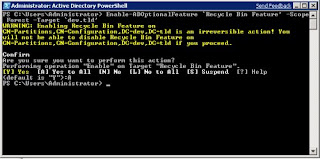
Once this is complete, you can view the contents of the Active Directory Recycle Bin. This special location exists as a container that holds the objects as they are deleted.
In my first looks at Windows Server 2008 R2 beta, I set up a test domain running at that function level. The domain, dev.tld, had nothing in the Recycle Bin after it was created. I deleted two objects: one user and one group. Figure B shows the query of what is in the Recycle Bin before the two objects were deleted, then another query after they were deleted.
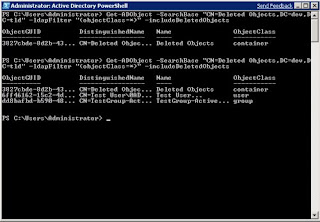
Notice that some fields were cut off in the display, notably the full GUID (which is needed for the restore). To display the entire GUID and object name, you would run this query:
Get-ADObject -SearchBase "CN=Deleted Objects,DC=dev,DC=tld" -ldapFilter "(objectClass=*)" -includeDeletedObjects | FT ObjectGUID,Name -A
Then, the full GUID is displayed, so a copy and paste operation will allow an easy restore. From the list above, to restore the single user named test, the following command will perform the restore:
Restore-ADObject -Identity 6ff46162-15c2-4d42-8e15-2fcac5c8422e
The object is instantly returned to full existence in Active Directory.
Source: http://blogs.techrepublic.com.com/datacenter/?p=675

Once this is complete, you can view the contents of the Active Directory Recycle Bin. This special location exists as a container that holds the objects as they are deleted.
In my first looks at Windows Server 2008 R2 beta, I set up a test domain running at that function level. The domain, dev.tld, had nothing in the Recycle Bin after it was created. I deleted two objects: one user and one group. Figure B shows the query of what is in the Recycle Bin before the two objects were deleted, then another query after they were deleted.

Notice that some fields were cut off in the display, notably the full GUID (which is needed for the restore). To display the entire GUID and object name, you would run this query:
Get-ADObject -SearchBase "CN=Deleted Objects,DC=dev,DC=tld" -ldapFilter "(objectClass=*)" -includeDeletedObjects | FT ObjectGUID,Name -A
Then, the full GUID is displayed, so a copy and paste operation will allow an easy restore. From the list above, to restore the single user named test, the following command will perform the restore:
Restore-ADObject -Identity 6ff46162-15c2-4d42-8e15-2fcac5c8422e
The object is instantly returned to full existence in Active Directory.
Source: http://blogs.techrepublic.com.com/datacenter/?p=675
Sunday, March 8, 2009
Recovering Bitlocker Keys from Active Directory
BitLocker is a great tool for ensuring that the data on your organization’s computers is protected when laptop computers are misplaced or hard disk drives are stolen. Volumes encrypted using bitlocker can be recovered using the bitlocker recovery tool if you have the appropriate recovery key. As each BitLocker key is individual , the big problem with BitLocker recovery has been keeping track of every computer’s BitLocker keys.
The easiest way to keep track of all keys is to archive them to Active Directory. It saves a lot of effort with setting up an Excel spreadsheet! The Computer Configuration\Administrative Templates\Windows components\BitLocker Drive Encryption node of a Windows Server 2008 GPO contains a policy named Turn on BitLocker Backup To Active Directory Domain Services.
You can configure this policy so that BitLocker cannot be first enabled unless the computer is connected to the domain and the backup of the BitLocker keys to AD succeeds (BitLocker remains on after that). To ensure BitLocker keys are backed up, enable the policy and select the Require BitLocker Backup to AD DS option before deploying BitLocker. You can choose to back up recovery passwords and key packages or just recovery passwords. You should back up both items as this will give you more flexibility when attempting to recover encrypted volumes that might be damaged.
Retrieving a BitLocker key from Active Directory involves using the BitLocker Recovery Password Viewer for Active Directory Users and Computers tool. This tool allows you to locate and view BitLocker recovery passwords, assuming that you have Domain Administrator privileges in the domain in which the password is stored and the passwords are archived in AD. You can obtain this tool from Microsoft’s website here: http://support.microsoft.com/kb/928202.
You should note that the tool is not included with Windows Server 2008 or Windows Vista by default. So although you can archive BitLocker keys to AD, there isn’t any way to retrieve them unless you download this extra tool. Before you run the tool on a DC for the first time, but after you have installed it, it is necessary to run the command regsvr32.exe bdeaducext.dll. The tool itself modifies Active Directory Users and Computers so that when you view a computer account’s properties, there will be a BitLocker Recovery Tab that lists BitLocker recovery passwords associated with the computer account. You can remove the tool using Add or Remove Programs in the Control Panel. Once you’ve recovered the appropriate passwords, you can get on with recovering encrypted data!
Source: http://windowsitpro.com/article/articleid/101582/recovering-bitlocker-keys-from-active-directory.html
The easiest way to keep track of all keys is to archive them to Active Directory. It saves a lot of effort with setting up an Excel spreadsheet! The Computer Configuration\Administrative Templates\Windows components\BitLocker Drive Encryption node of a Windows Server 2008 GPO contains a policy named Turn on BitLocker Backup To Active Directory Domain Services.
You can configure this policy so that BitLocker cannot be first enabled unless the computer is connected to the domain and the backup of the BitLocker keys to AD succeeds (BitLocker remains on after that). To ensure BitLocker keys are backed up, enable the policy and select the Require BitLocker Backup to AD DS option before deploying BitLocker. You can choose to back up recovery passwords and key packages or just recovery passwords. You should back up both items as this will give you more flexibility when attempting to recover encrypted volumes that might be damaged.
Retrieving a BitLocker key from Active Directory involves using the BitLocker Recovery Password Viewer for Active Directory Users and Computers tool. This tool allows you to locate and view BitLocker recovery passwords, assuming that you have Domain Administrator privileges in the domain in which the password is stored and the passwords are archived in AD. You can obtain this tool from Microsoft’s website here: http://support.microsoft.com/kb/928202.
You should note that the tool is not included with Windows Server 2008 or Windows Vista by default. So although you can archive BitLocker keys to AD, there isn’t any way to retrieve them unless you download this extra tool. Before you run the tool on a DC for the first time, but after you have installed it, it is necessary to run the command regsvr32.exe bdeaducext.dll. The tool itself modifies Active Directory Users and Computers so that when you view a computer account’s properties, there will be a BitLocker Recovery Tab that lists BitLocker recovery passwords associated with the computer account. You can remove the tool using Add or Remove Programs in the Control Panel. Once you’ve recovered the appropriate passwords, you can get on with recovering encrypted data!
Source: http://windowsitpro.com/article/articleid/101582/recovering-bitlocker-keys-from-active-directory.html
Tuesday, January 27, 2009
Active Directory Auditing Tools
Active Directory is a crucial component of just about any Windows-based IT infrastructure, and keeping tabs on who modified AD records, when they were changed, and why they were changed can be a full-time job. Throw in some additional requirements—such as the need to be in compliance with federal and state governance guidelines, from the Sarbanes-Oxley (SOX) Act to the Health Insurance Portability and Accountability Act (HIPAA)—and you have the makings of a headache-inducing task for many IT pros. But help is on the way.
Windows Server 2008 AD Improvements
Microsoft listened to IT pro complaints about AD auditing and implemented several new features in Windows Server 2008 to ease the pain. “Windows 2008 brings various benefits to the table with respect to event management, including a completely changed event-log storage model,” says Guido Grillenmeier, a Microsoft Active Directory Services MVP and a master technologist with HP’s Advanced Technology Group. “It also includes improved native AD auditing, as it allows more granular and more complete auditing of AD changes. For example, it can record the old value and new value of an attribute that was changed.”
Server 2008 breaks auditing into four categories: Access, Changes, Replication, and Detailed Replication. The Changes category improves upon the way AD changes were handled in Windows Server 2003 and Windows 2000, logging deltas of attribute changes, detailing new object creation and movement, and offering a create-event feature that’s triggered when objects are moved to different domains.
Choosing an AD Auditing Solution
Regardless of whether you’re running Server 2008, Windows 2003, or Win2K, an off-the-shelf AD auditing product can help minimize the workload. Determining what level of AD auditing your organization needs is important . Grillenmeier cautions against looking for a silver-bullet solution to AD auditing requirements. “For example, proxy-management solutions … such as AD Self-Service Suite and Ensim Unify … are nice tools to delegate specific management tasks to non-admin users and audit the changes they do to AD with the tool. However, these tools only audit what’s changed by them and can’t audit native changes in AD; they can never create a complete auditing trail.”
Grillenmeier contrasts those AD proxy-management auditing tools with AD auditing tools that gather security and auditing events from event logs on domain controllers - such as Microsoft System Center Operations Manager or HP OpenView—and AD auditing tools that combine native event logs with AD data gathered by agents, such as Quest InTrust and Quest ChangeAuditor.
“Event-log–based may be sufficient for many customers that need to meet specific compliancy requirements,” says Grillenmeier. “It’s mainly a matter of correctly setting up auditing in the directory itself, so that the changes are correctly logged in the event logs. Note that if proxy-management tools are used, you still have to combine the native event data with the data of the proxy tools to figure out which person actually performed a change in AD, since for changes done by the proxy tool the native event logs will only see the service account as the owner of the change.” Grillenmeier says that only products that combine event-log auditing with separate agents that gather AD data are capable of auditing all AD changes.
Don’t Forget the Data
One important yet overlooked aspect of AD auditing is the massive amount of data the auditing process can generate. “For enterprise-scale customers, this easily amounts to many gigabytes per day of auditing data,” Grillenmeier says. “Tools that [have the capability] to efficiently store the auditing data in a compressed format and are a critical factor for large companies.” You’ll do well to consider your organization’s auditing needs, the number of AD changes it makes, and how granular those changes are. And you’d be well advised to pay attention to the security, backup, and disaster recovery of AD auditing data, just as you would for other types of data.
Source: http://windowsitpro.com/ActiveDirectory/Article/ArticleID/100828/ActiveDirectory_100828.html
Thursday, January 15, 2009
How do I install Active Directory on my Windows 2000 Server?
You can configure your server as a Domain Controller manually, but if you don't have the time, skill, brains or will to do it manually, it can still be done with just a few mouse clicks.
Dynamic Host Configuration Protocol (DHCP), Domain Name Service (DNS), and DCPROMO can be by using the Windows 2000 Configure Your Server Wizard.
Even though it's all done automatically, you still need the following:
Dynamic Host Configuration Protocol (DHCP), Domain Name Service (DNS), and DCPROMO can be by using the Windows 2000 Configure Your Server Wizard.
Even though it's all done automatically, you still need the following:
- A NIC
- The TCP/IP protocol
- An NTFS partition with enough free space
- A network connection (to a hub or to another computer via a crossover cable).
- An Administrator's username and password
- The Windows 2000 Server (or Advanced Server) CD media (or at least the i386 folder)
This article assumes that all of the above requirements are fulfilled. See my Active Directory Installation Requirements page for more info.
Note: This article does NOT assume you have a working brain, or that you can use it correctly. If you think you really want to know how this thing works, please read the How to Install Active Directory on W2K page instead...
To configure your server as a Domain Controller
Note: This article does NOT assume you have a working brain, or that you can use it correctly. If you think you really want to know how this thing works, please read the How to Install Active Directory on W2K page instead...
To configure your server as a Domain Controller
- 1. Press Ctrl-Alt-Del and log on to the server as administrator. Leave the password blank.
- 2. When the Windows 2000 Configure Your Server page appears, select This is the only server in my network and click Next.
- 3.Click Next to configure the server as a domain controller and set up Active Directory, DHCP, and DNS.
- On the What do you want to name your domain page, type dpetri
- In the Domain name box, type com (again, this is only an example). Click on the screen outside of the textbox to see the Preview of the Active Directory domain name. Click Next
- Click Next to run the wizard. When prompted, insert the Windows 2000 Server CD-ROM. When the wizard is finished, the machine reboots.
- The Configure Your Server Wizard installs DNS and DHCP and configures DNS, DHCP, and Active Directory. The default values set by the wizard are:
- DHCP Scope: 10.0.0.3-10.0.0.254
- Preferred DNS Server: 127.0.0.1
- IP address: 10.10.1.1
- Subnet mask: 255.0.0.0
Source: http://www.petri.co.il/how_to_install_active_directory_on_w2k_for_lamers.htm
Friday, December 5, 2008
Microsoft's new hosted services: What are your options?
Today's announcement officially means Microsoft is the latest entry in a market of services that Microsoft actually made feasible: It can now host Exchange mailboxes for Active Directory users that do not have Exchange Server 2007.
Whether today's announcement of Microsoft-branded hosted services actually adds up to a savings for a business customer, depends on how that customer is getting or has gotten its software. Right now, the Exchange Online service can host mailboxes for as little as $10 per month per client, with a five-user minimum. That's about the industry average; other firms presently offer Exchange hosting for between $8 and $15 per month.
But Microsoft's not entering this market to simply lend its voice to the ongoing chorus. On an a la carte basis, it's also offering SharePoint Online hosting for managing a collaborative document sharing site (at $7.25 / user / month), secure instant messaging and presence with Office Communications Online (at $2.50 / user / month), and Web conferencing with Office Live Meeting, a pre-existing service (now at $4.50 / user / month).
In a very compelling alternative package, though, the company is rolling all four of these services into a single bundle called Business Productivity Online Standard Suite, for $15 per user per month. Package licensing deals are available for "midmarket" customers with between 25 and 499 users, and "enterprise" customers with 500 users and above.
Compare this against the way licensing works now. Microsoft offers Exchange Server 2007 Standard Edition for $699 up front, plus $67 for each Client Access License (CAL). So in small-quantity bundles, just the CAL could be paid for in under seven months' time, which would leave a seven-person business another seven months to break even on the up-front costs.
However, just last week, Microsoft rolled out four buildouts of Small Business Server 2008 and Essential Business Server 2008, which include Exchange Server. For the Standard Edition of SBS 2008 (which does not include SQL Server), a five-CAL package sells for $1,089, plus $77 for each additional user. SBS also includes Windows Server 2008, of course, as well as SharePoint Services 3.0, and additional extras such as Forefront Security.
Technically, Microsoft's Online hosted services do not require Windows Server. However, if your business uses networked systems and if you want to take full advantage of Exchange synchronization, you should probably have a domain controller, which means one copy of Windows Server 2008 Standard Edition. That will get you Active Directory Services (AD DS, and yes, the "D" is indeed repeated there). You could get hosted e-mail without Windows Server, in which case you'd be running Outlook 2007 through Windows XP or Vista, but most of the ActiveSync functionality that Exchange provides would be useless. The street price for Windows Server 2008 Standard is about $749, coming down a bit since the rollout of SBS and EBS 2008, and you may still need additional CALs.
Source:betanews.com/article/Microsofts_new_hosted_services_What_are_your_options/1226954182
Whether today's announcement of Microsoft-branded hosted services actually adds up to a savings for a business customer, depends on how that customer is getting or has gotten its software. Right now, the Exchange Online service can host mailboxes for as little as $10 per month per client, with a five-user minimum. That's about the industry average; other firms presently offer Exchange hosting for between $8 and $15 per month.
But Microsoft's not entering this market to simply lend its voice to the ongoing chorus. On an a la carte basis, it's also offering SharePoint Online hosting for managing a collaborative document sharing site (at $7.25 / user / month), secure instant messaging and presence with Office Communications Online (at $2.50 / user / month), and Web conferencing with Office Live Meeting, a pre-existing service (now at $4.50 / user / month).
In a very compelling alternative package, though, the company is rolling all four of these services into a single bundle called Business Productivity Online Standard Suite, for $15 per user per month. Package licensing deals are available for "midmarket" customers with between 25 and 499 users, and "enterprise" customers with 500 users and above.
Compare this against the way licensing works now. Microsoft offers Exchange Server 2007 Standard Edition for $699 up front, plus $67 for each Client Access License (CAL). So in small-quantity bundles, just the CAL could be paid for in under seven months' time, which would leave a seven-person business another seven months to break even on the up-front costs.
However, just last week, Microsoft rolled out four buildouts of Small Business Server 2008 and Essential Business Server 2008, which include Exchange Server. For the Standard Edition of SBS 2008 (which does not include SQL Server), a five-CAL package sells for $1,089, plus $77 for each additional user. SBS also includes Windows Server 2008, of course, as well as SharePoint Services 3.0, and additional extras such as Forefront Security.
Technically, Microsoft's Online hosted services do not require Windows Server. However, if your business uses networked systems and if you want to take full advantage of Exchange synchronization, you should probably have a domain controller, which means one copy of Windows Server 2008 Standard Edition. That will get you Active Directory Services (AD DS, and yes, the "D" is indeed repeated there). You could get hosted e-mail without Windows Server, in which case you'd be running Outlook 2007 through Windows XP or Vista, but most of the ActiveSync functionality that Exchange provides would be useless. The street price for Windows Server 2008 Standard is about $749, coming down a bit since the rollout of SBS and EBS 2008, and you may still need additional CALs.
Source:betanews.com/article/Microsofts_new_hosted_services_What_are_your_options/1226954182
Thursday, November 20, 2008
How to Schedule Active Directory Snapshots in Windows Server 2008
If you’ve played around with Windows Server 2008 Active Directory Domain Services, you will probably be familiar with the snapshot feature within NTDSUTIL. The feature allows you to take snapshot of the volumes that host the AD components and to then mount the snapshot. Once mounted, you can use DSAMAIN.EXE to expose a read-only copy of the AD database to your favourite browsing tool (LDP.EXE, ADSIEDIT.MSC, DSA.MSC, ADFIND.EXE, etc.). The process for doing this is well documented elsewhere, so I don’t intend to reproduce it here.
Microsoft recommends that you schedule regular snapshots, as this provides you with a quick method of checking the contents of the directory at different time slices in the past. One advantage of this that you can quickly identify which backup to use when needing to authoritatively restore accidentally deleted AD objects from backup.
Windows Server 2008 comes with a re-vamped Task Scheduler. You can configure tasks using both the UI as well as the command line (schtasks.exe). I prefer to use the command line as it has the advantage of allowing you to set tasks to run under the SYSTEM account. It is also the only option if you are using Server Core, unless you want to open the firewall to allow remote task scheduling from a computer running the full version.
Here’s the command line I use. Note that this is all on one line (wrapped here to fit page width).
SCHTASKS /Create /RU SYSTEM /SC DAILY /TN MYTASKS\DS_SNAPSHOT /TR “%windir%\system32\ntdsutil.exe sn \”ac i ntds\” create q q” /ST 05:00
It is worth pulling the command arguments apart to explain them better
/Create - pretty obvious. It instructs schtasks to create a new task.
/RU SYSTEM - the task will run under the SYSTEM account. Note that you don’t need to specify a password when using SYSTEM.
/SC DAILY- the task will run daily
/TN MYTASKS\DS_SNAPSHOT - I’ve called the task name DS_SNAPSHOT and this will be created within the MYTASKS task folder. The folder will be created automatically if it does not already exist.
/TR “%windir%\system32\ntdsutil.exe sn \”ac i ntds\” create q q” - This is the task action. It runs NTDSUTIL with arguments. Note that the double quotation marks within the arguments have to be escaped with the backslash character
/ST 05:00 - the start time for the task will be 5am.
The command line shown above assumes that you are working on the local machine on which you want to create the task. If defining the task for a remote computer, use the additional command line options shown below.
SCHTASKS /Create /S MYSERVER /U administrator /P xxxxx /RU SYSTEM /SC DAILY /TN MYTASKS\DS_SNAPSHOT /TR “%windir%\system32\ntdsutil.exe sn \”ac i ntds\” create q q” /ST 05:00
Once you’ve run the command you can verify the settings in the Task Scheduler UI.
Source:open-a-socket.com/index.php/2008/11/20/how-to-schedule-active-directory-snapshots-in-windows-server-2008/
See Also this :-
Restarting Active Directory as a service in Windows Server 2008
Microsoft recommends that you schedule regular snapshots, as this provides you with a quick method of checking the contents of the directory at different time slices in the past. One advantage of this that you can quickly identify which backup to use when needing to authoritatively restore accidentally deleted AD objects from backup.
Windows Server 2008 comes with a re-vamped Task Scheduler. You can configure tasks using both the UI as well as the command line (schtasks.exe). I prefer to use the command line as it has the advantage of allowing you to set tasks to run under the SYSTEM account. It is also the only option if you are using Server Core, unless you want to open the firewall to allow remote task scheduling from a computer running the full version.
Here’s the command line I use. Note that this is all on one line (wrapped here to fit page width).
SCHTASKS /Create /RU SYSTEM /SC DAILY /TN MYTASKS\DS_SNAPSHOT /TR “%windir%\system32\ntdsutil.exe sn \”ac i ntds\” create q q” /ST 05:00
It is worth pulling the command arguments apart to explain them better
/Create - pretty obvious. It instructs schtasks to create a new task.
/RU SYSTEM - the task will run under the SYSTEM account. Note that you don’t need to specify a password when using SYSTEM.
/SC DAILY- the task will run daily
/TN MYTASKS\DS_SNAPSHOT - I’ve called the task name DS_SNAPSHOT and this will be created within the MYTASKS task folder. The folder will be created automatically if it does not already exist.
/TR “%windir%\system32\ntdsutil.exe sn \”ac i ntds\” create q q” - This is the task action. It runs NTDSUTIL with arguments. Note that the double quotation marks within the arguments have to be escaped with the backslash character
/ST 05:00 - the start time for the task will be 5am.
The command line shown above assumes that you are working on the local machine on which you want to create the task. If defining the task for a remote computer, use the additional command line options shown below.
SCHTASKS /Create /S MYSERVER /U administrator /P xxxxx /RU SYSTEM /SC DAILY /TN MYTASKS\DS_SNAPSHOT /TR “%windir%\system32\ntdsutil.exe sn \”ac i ntds\” create q q” /ST 05:00
Once you’ve run the command you can verify the settings in the Task Scheduler UI.
Source:open-a-socket.com/index.php/2008/11/20/how-to-schedule-active-directory-snapshots-in-windows-server-2008/
See Also this :-
Restarting Active Directory as a service in Windows Server 2008
Wednesday, November 12, 2008
Active Directory-based soln for UNIX & Linux
Centrify Corporation, a provider of Microsoft Active Directory-based auditing, access control and identity management solutions for non-Microsoft platforms, has announced Centrify DirectAuthorize, a software solution that enables organizations to increase security and compliance by controlling how users access systems and what they can do on those systems.
DirectAuthorize centrally manages and enforces role-based entitlements for fine-grained control of user access and privileges on UNIX and Linux systems. This can eliminate a user's need to use the root account or other privileged accounts, thereby allowing those accounts to be securely locked down.
DirectAuthorize is the industry's first Active Directory-based solution for UNIX and Linux privilege management and delegation of root access. Leveraging a common architecture, DirectAuthorize is seamlessly integrated with Centrify DirectControl and complements DirectControl's comprehensive Active Directory-based authentication, access control and group policy support for non-Microsoft systems and applications.
"Unlike Windows Active Directory, UNIX lacks a simple and scalable model for administrative delegation," observed Ant Allan and Jay Heiser, Research Vice Presidents in the Gartner publication, Controlling UNIX Superuser privileges is Critical. "Organizations that allow root logins to mission- critical UNIX servers run unnecessary risks."
DirectAuthorize meets compliance-driven requirements for "least access" management by allowing organizations to centrally define logical roles (e.g. backup operator, DBA, web developer, application administrator, etc.) that carry with them the specific rights needed to perform duties within a role. DirectAuthorize's role-based architecture enables the following benefits:
Like Centrify DirectControl, DirectAuthorize is tightly integrated into Active Directory, meaning no additional servers or infrastructure is required to run DirectAuthorize. DirectAuthorize stores its role and rights data securely in Active Directory Authorization Manager's existing rights-based logical model and data storage schema found in Windows 2003 and above.
This means no Active Directory schema extensions are required to install and use DirectAuthorize, and customers can leverage the pre-existing Authorization Manager (AzMan) tools and APIs to access DirectAuthorize's roles and rights data. DirectAuthorize is built on top of the DirectControl architecture, meaning the DirectAuthorize user interface is integrated with the DirectControl Administrator's Console and the DirectAuthorize rights enforcers are integrated into the DirectControl Agent. And unlike other solutions, DirectAuthorize requires no UNIX kernel changes or system reboots.
Via:ciol.com
DirectAuthorize centrally manages and enforces role-based entitlements for fine-grained control of user access and privileges on UNIX and Linux systems. This can eliminate a user's need to use the root account or other privileged accounts, thereby allowing those accounts to be securely locked down.
DirectAuthorize is the industry's first Active Directory-based solution for UNIX and Linux privilege management and delegation of root access. Leveraging a common architecture, DirectAuthorize is seamlessly integrated with Centrify DirectControl and complements DirectControl's comprehensive Active Directory-based authentication, access control and group policy support for non-Microsoft systems and applications.
"Unlike Windows Active Directory, UNIX lacks a simple and scalable model for administrative delegation," observed Ant Allan and Jay Heiser, Research Vice Presidents in the Gartner publication, Controlling UNIX Superuser privileges is Critical. "Organizations that allow root logins to mission- critical UNIX servers run unnecessary risks."
DirectAuthorize meets compliance-driven requirements for "least access" management by allowing organizations to centrally define logical roles (e.g. backup operator, DBA, web developer, application administrator, etc.) that carry with them the specific rights needed to perform duties within a role. DirectAuthorize's role-based architecture enables the following benefits:
- Simplify the execution of privileged commands --- users no longer need to switch to root or other privileged accounts
- Grant users rights to execute commands with elevated privileges, eliminating the need for access to privileged accounts and passwords
- Assign users a Restricted Environment with access only to a specific "whitelist" of commands
- Lockdown sensitive systems with fine-grained access controls that specify who can access a system and how
- Model date- and time-based access windows to match user roles
Like Centrify DirectControl, DirectAuthorize is tightly integrated into Active Directory, meaning no additional servers or infrastructure is required to run DirectAuthorize. DirectAuthorize stores its role and rights data securely in Active Directory Authorization Manager's existing rights-based logical model and data storage schema found in Windows 2003 and above.
This means no Active Directory schema extensions are required to install and use DirectAuthorize, and customers can leverage the pre-existing Authorization Manager (AzMan) tools and APIs to access DirectAuthorize's roles and rights data. DirectAuthorize is built on top of the DirectControl architecture, meaning the DirectAuthorize user interface is integrated with the DirectControl Administrator's Console and the DirectAuthorize rights enforcers are integrated into the DirectControl Agent. And unlike other solutions, DirectAuthorize requires no UNIX kernel changes or system reboots.
Via:ciol.com
Tuesday, October 14, 2008
How To Use Ntdsutil to Manage Active Directory Files from the Command Line in Windows Server 2003
How to Start Your Computer in Directory Services Restore Mode
Windows Server 2003 Directory Service opens its files in exclusive mode. This means that the files cannot be managed while the server is operating as a domain controller.
To start the server in Directory Services Restore mode, follow these steps:
1. Restart the computer.
2. After the BIOS information is displayed, press F8.
3. Use the DOWN ARROW to select Directory Services Restore Mode(Windows Server 2003 domain controllers only), and then press ENTER.
4. Use the UP and DOWN ARROWS to select the Windows Server 2003 operating system, and then press ENTER.
5. Log on with your administrative account and password.
How to Install Support Tools and Start Ntdsutil
To install Windows Support Tools, follow these steps:
1. Insert the Windows Server 2003 installation CD in the CD-ROM or DVD-ROM drive.
2. Click Start, click Run, type drive_letter:\Support\Tools\suptools.msi, and then press ENTER.
To start Ntdsutil, click Start, click Run, type ntdsutil in the Open box, and then press ENTER.
NOTE: To access the list of available commands, type ?, and then press ENTER.
How to Move the Database
You can move the Ntds.dit data file to a new folder. If you do so, the registry is updated so that active directory service uses the new location when you restart the server.
To move the data file to another folder, follow these steps:
1. Click Start, click Run, type ntdsutil in the Open box, and then press ENTER.
2. At the Ntdsutil command prompt, type files, and then press ENTER.
3. At the file maintenance command prompt, type move DB to new location (where new location is an existing folder that you have created for this purpose), and then press ENTER.
4. To quit Ntdsutil, type quit, and then press ENTER.
5. Restart the computer.
How to Move Log Files
Use the move logs to command to move the directory service log files to another folder. For the new settings to take effect, restart the computer after you move the log files.
To move the log files, follow these steps:
1. Click Start, click Run, type ntdsutil in the Open box, and then press ENTER.
2. At the Ntdsutil command prompt, type files, and then press ENTER.
3. At the file maintenance command prompt, type move logs to new location (where new location is an existing folder that you have created for this purpose), and then press ENTER.
4. Type quit, and then press ENTER.
5. Restart the computer.
How to Recover the Database
To recover the database, follow these steps:
1. Click Start, click Run, type ntdsutil in the Open box, and then press ENTER.
2. At the Ntdsutil command prompt, type files, and then press ENTER.
3. At the file maintenance command prompt, type recover, and then press ENTER.
4. Type quit, and then press ENTER.
5. Restart the computer.
NOTE: You can also use Esentutl.exe to perform database recovery when the procedure described earlier in this article fails (for example, the procedure may fail when the database is inconsistent). To use Esentutl.exe to perform database recovery, follow these steps:
1. Click Start, click Run, type cmd in the Open box, and then press ENTER.
2. Type esentutl /r path\ntds.dit, and then press ENTER. path refers to the current location of the Ntds.dit file.
3. Delete the database log files (.log) from the WINDOWS\Ntds folder.
4. Restart the computer.
For additional information about the esentutl.exe utility, at the command prompt, type esentutl /?, and then press ENTER.
NOTE: This procedure involves transaction logs to recover data. Transaction logs are used to make sure that committed transactions are not lost if your computer fails or if it experiences unexpected power loss. Transaction data is written first to a log file, and then it is written to the data file. After you restart the computer after it fails, you can rerun the log to reproduce the transactions that were committed but that were not recorded to the data file.
How to Set Paths
You can use the set path command to set the path for the following items:
• Backup: Use this parameter with the set path command to set the disk-to-disk backup target to the folder that is specified by the location variable. You can configure Directory Service to perform an online disk-to-disk backup at scheduled intervals.
• Database: Use this parameter with the set path command to update the part of the registry that identifies the location and file name of the data file. Use this command only to rebuild a domain controller that has lost its data file and that is not being restored by means of typical restoration procedures.
• Logs: Use this parameter with the set path command to update the part of the registry that identifies the location of the log files. Use this command only if you are rebuilding a domain controller that has lost its log files and is not being restored by means of typical restoration procedures.
• Working Directory: Use this parameter with the set path command to set the part of the registry that identifies Directory Service's working folder to the folder that is specified by the location variable.
To run the set path command, follow these steps:
1. Click Start, click Run, type ntdsutil in the Open box, and then press ENTER.
2. At the Ntdsutil command prompt, type files, and then press ENTER.
3. At the file maintenance command prompt, type set path object location, and then press ENTER. object refers to one of the following items:
• Backup
• Database
• Logs
• Working Directory
location refers to the location (folder) to which you want to set the object identified in the command.
4. Type quit, and then press ENTER.
Source: support.microsoft.com/kb/816120
Windows Server 2003 Directory Service opens its files in exclusive mode. This means that the files cannot be managed while the server is operating as a domain controller.
To start the server in Directory Services Restore mode, follow these steps:
1. Restart the computer.
2. After the BIOS information is displayed, press F8.
3. Use the DOWN ARROW to select Directory Services Restore Mode(Windows Server 2003 domain controllers only), and then press ENTER.
4. Use the UP and DOWN ARROWS to select the Windows Server 2003 operating system, and then press ENTER.
5. Log on with your administrative account and password.
How to Install Support Tools and Start Ntdsutil
To install Windows Support Tools, follow these steps:
1. Insert the Windows Server 2003 installation CD in the CD-ROM or DVD-ROM drive.
2. Click Start, click Run, type drive_letter:\Support\Tools\suptools.msi, and then press ENTER.
To start Ntdsutil, click Start, click Run, type ntdsutil in the Open box, and then press ENTER.
NOTE: To access the list of available commands, type ?, and then press ENTER.
How to Move the Database
You can move the Ntds.dit data file to a new folder. If you do so, the registry is updated so that active directory service uses the new location when you restart the server.
To move the data file to another folder, follow these steps:
1. Click Start, click Run, type ntdsutil in the Open box, and then press ENTER.
2. At the Ntdsutil command prompt, type files, and then press ENTER.
3. At the file maintenance command prompt, type move DB to new location (where new location is an existing folder that you have created for this purpose), and then press ENTER.
4. To quit Ntdsutil, type quit, and then press ENTER.
5. Restart the computer.
How to Move Log Files
Use the move logs to command to move the directory service log files to another folder. For the new settings to take effect, restart the computer after you move the log files.
To move the log files, follow these steps:
1. Click Start, click Run, type ntdsutil in the Open box, and then press ENTER.
2. At the Ntdsutil command prompt, type files, and then press ENTER.
3. At the file maintenance command prompt, type move logs to new location (where new location is an existing folder that you have created for this purpose), and then press ENTER.
4. Type quit, and then press ENTER.
5. Restart the computer.
How to Recover the Database
To recover the database, follow these steps:
1. Click Start, click Run, type ntdsutil in the Open box, and then press ENTER.
2. At the Ntdsutil command prompt, type files, and then press ENTER.
3. At the file maintenance command prompt, type recover, and then press ENTER.
4. Type quit, and then press ENTER.
5. Restart the computer.
NOTE: You can also use Esentutl.exe to perform database recovery when the procedure described earlier in this article fails (for example, the procedure may fail when the database is inconsistent). To use Esentutl.exe to perform database recovery, follow these steps:
1. Click Start, click Run, type cmd in the Open box, and then press ENTER.
2. Type esentutl /r path\ntds.dit, and then press ENTER. path refers to the current location of the Ntds.dit file.
3. Delete the database log files (.log) from the WINDOWS\Ntds folder.
4. Restart the computer.
For additional information about the esentutl.exe utility, at the command prompt, type esentutl /?, and then press ENTER.
NOTE: This procedure involves transaction logs to recover data. Transaction logs are used to make sure that committed transactions are not lost if your computer fails or if it experiences unexpected power loss. Transaction data is written first to a log file, and then it is written to the data file. After you restart the computer after it fails, you can rerun the log to reproduce the transactions that were committed but that were not recorded to the data file.
How to Set Paths
You can use the set path command to set the path for the following items:
• Backup: Use this parameter with the set path command to set the disk-to-disk backup target to the folder that is specified by the location variable. You can configure Directory Service to perform an online disk-to-disk backup at scheduled intervals.
• Database: Use this parameter with the set path command to update the part of the registry that identifies the location and file name of the data file. Use this command only to rebuild a domain controller that has lost its data file and that is not being restored by means of typical restoration procedures.
• Logs: Use this parameter with the set path command to update the part of the registry that identifies the location of the log files. Use this command only if you are rebuilding a domain controller that has lost its log files and is not being restored by means of typical restoration procedures.
• Working Directory: Use this parameter with the set path command to set the part of the registry that identifies Directory Service's working folder to the folder that is specified by the location variable.
To run the set path command, follow these steps:
1. Click Start, click Run, type ntdsutil in the Open box, and then press ENTER.
2. At the Ntdsutil command prompt, type files, and then press ENTER.
3. At the file maintenance command prompt, type set path object location, and then press ENTER. object refers to one of the following items:
• Backup
• Database
• Logs
• Working Directory
location refers to the location (folder) to which you want to set the object identified in the command.
4. Type quit, and then press ENTER.
Source: support.microsoft.com/kb/816120
Thursday, August 7, 2008
What is Active directory
Active directory is a directory structure used on Microsoft Windows based computers and servers to store information and data about networks and domains. It is primarily used for online information and was originally created in 1996 and first used with Windows 2000.
An active directory (sometimes referred to as an AD) does a variety of functions including the ability to provide information on objects, helps organize these objects for easy retrieval and access, allows access by end users and administrators and allows the administrator to set security up for the directory.
An active directory can be defined as a hierarchical structure and this structure is usually broken up into three main categories, the resources which might include hardware such as printers, services for end users such as web email servers and objects which are the main functions of the domain and network.
It is interesting to note the framework for the objects. Remember that an object can be a piece of hardware such as a printer, end user or security settings set by the administrator. These objects can hold other objects within their file structure. All objects have an ID, usually an object name (folder name). In addition to these objects being able to hold other objects, every object has its own attributes which allows it to be characterized by the information which it contains. Most IT professionals call these setting or characterizations schemas.
Depending on the type of schema created for a folder, will ultimately determine how these objects are used. For instance, some objects with certain schemas can not be deleted, they can only be deactivated. Others types of schemas with certain attributes can be deleted entirely. For instance, a user object can be deleted, but the administrator object can not be deleted.
When understanding active directories, it is important to know the framework that objects can be viewed at. In fact, an active directory can be viewed at either one of three levels, these levels are called forests, trees or domains. The highest structure is called the forest because you can see all objects included within the active directory.
Within the Forest structure are trees, these structures usually hold one or more domains, going further down the structure of an active directory are single domains. To put the forest, trees and domains into perspective, consider the following example.
A large organization has many dozens of users and processes. The forest might be the entire network of end users and specific computers at a set location. Within this forest directory are now trees that hold information on specific objects such as domain controllers, program data, system, etc. Within these objects are even more objects which can then be controlled and categorized.
An active directory (sometimes referred to as an AD) does a variety of functions including the ability to provide information on objects, helps organize these objects for easy retrieval and access, allows access by end users and administrators and allows the administrator to set security up for the directory.
An active directory can be defined as a hierarchical structure and this structure is usually broken up into three main categories, the resources which might include hardware such as printers, services for end users such as web email servers and objects which are the main functions of the domain and network.
It is interesting to note the framework for the objects. Remember that an object can be a piece of hardware such as a printer, end user or security settings set by the administrator. These objects can hold other objects within their file structure. All objects have an ID, usually an object name (folder name). In addition to these objects being able to hold other objects, every object has its own attributes which allows it to be characterized by the information which it contains. Most IT professionals call these setting or characterizations schemas.
Depending on the type of schema created for a folder, will ultimately determine how these objects are used. For instance, some objects with certain schemas can not be deleted, they can only be deactivated. Others types of schemas with certain attributes can be deleted entirely. For instance, a user object can be deleted, but the administrator object can not be deleted.
When understanding active directories, it is important to know the framework that objects can be viewed at. In fact, an active directory can be viewed at either one of three levels, these levels are called forests, trees or domains. The highest structure is called the forest because you can see all objects included within the active directory.
Within the Forest structure are trees, these structures usually hold one or more domains, going further down the structure of an active directory are single domains. To put the forest, trees and domains into perspective, consider the following example.
A large organization has many dozens of users and processes. The forest might be the entire network of end users and specific computers at a set location. Within this forest directory are now trees that hold information on specific objects such as domain controllers, program data, system, etc. Within these objects are even more objects which can then be controlled and categorized.
Monday, July 14, 2008
Active Directory management
AD data is stored in a central, organized, accessible database. Active Directory networks can vary from a small installation with just a few hundred objects to millions of them. It is a key component when it comes to managing very large networks.
Their manager calls the help desk, which calls IT support to action the changes in AD. Once these are made, the manager is notified that the user has been set up. This can take hours, sometimes days. Not only does this process tie up IT with mundane admin chores, but it can mean that staff can't be productive during this hiatus. The other side of the coin applies equally - you can't remove a user's access rights immediately.
Active Directory offers a cost-effective solution. It neatly overcomes these AD admin headaches by effectively delegating AD object management to line managers. If changes have to be made, managers can make them on the spot, with changes going live in as little as ten seconds.
Active Directory uses a web-based AD management interface - it can be installed quickly through a company's internal network as there are no desktop clients to install, and the familiar web-browser user interface cuts the need for training. In fact, it's so simple and intuitive that most staff probably won't need any training.
Active Directory provides granular access control to entrusted staff with no limitations. Once logged in your presented with a home page offering just three options: update access, view access groups and view audited history. Changes to the AD are made via a wizard. A search option is provided, useful if you have thousands of AD objects to contend with.
When you have finished making your changes you simply click the "update all groups" button and it's done.
Paperwork is kept to a minimum. Changes to working practices and user privileges are managed through work flow emails. As well as greatly simplifying AD admin for both line managers and IT support staff, security is also improved by automating a usually manual security process. All Active Directory updates are logged to allow for auditing, which is essential to meet compliance standards.
In fact, Active Directory management can be standardized worldwide and can be used as part of the enterprise's Quality Management. The audit history option on the home page lets you view log information by group/role, date or user. Data can be downloaded and displayed in Excel.
Although Active Directory is a standalone product and doesn't integrate with other network management tools, its web services programming interface (API) will allow the integration of separate systems. As a result, Active Directory can complement existing identity management or account provisioning solutions. At the moment, Active Directory can support up to 100,000 users. System pre-requisites include Windows Server 2000/2003, IIS 6,.NET Framework 1.1, an SMTP e-mail server and MS SL Server, either 2000, 2005 or Express 2005 - most organizations contemplating deploying Active Directory will most likely meet these criteria from the off.
Installation is a doddle - in fact, if you spend more than ten minutes on it, you're probably doing something wrong.
In conclusion, Active Directory is an AD management tool that's well-suited to organizations with more than 300 seats, as well as to managed-data centers looking for a painless and secure method of passing security management tasks back to the client.
Source:securecomputing.net
Their manager calls the help desk, which calls IT support to action the changes in AD. Once these are made, the manager is notified that the user has been set up. This can take hours, sometimes days. Not only does this process tie up IT with mundane admin chores, but it can mean that staff can't be productive during this hiatus. The other side of the coin applies equally - you can't remove a user's access rights immediately.
Active Directory offers a cost-effective solution. It neatly overcomes these AD admin headaches by effectively delegating AD object management to line managers. If changes have to be made, managers can make them on the spot, with changes going live in as little as ten seconds.
Active Directory uses a web-based AD management interface - it can be installed quickly through a company's internal network as there are no desktop clients to install, and the familiar web-browser user interface cuts the need for training. In fact, it's so simple and intuitive that most staff probably won't need any training.
Active Directory provides granular access control to entrusted staff with no limitations. Once logged in your presented with a home page offering just three options: update access, view access groups and view audited history. Changes to the AD are made via a wizard. A search option is provided, useful if you have thousands of AD objects to contend with.
When you have finished making your changes you simply click the "update all groups" button and it's done.
Paperwork is kept to a minimum. Changes to working practices and user privileges are managed through work flow emails. As well as greatly simplifying AD admin for both line managers and IT support staff, security is also improved by automating a usually manual security process. All Active Directory updates are logged to allow for auditing, which is essential to meet compliance standards.
In fact, Active Directory management can be standardized worldwide and can be used as part of the enterprise's Quality Management. The audit history option on the home page lets you view log information by group/role, date or user. Data can be downloaded and displayed in Excel.
Although Active Directory is a standalone product and doesn't integrate with other network management tools, its web services programming interface (API) will allow the integration of separate systems. As a result, Active Directory can complement existing identity management or account provisioning solutions. At the moment, Active Directory can support up to 100,000 users. System pre-requisites include Windows Server 2000/2003, IIS 6,.NET Framework 1.1, an SMTP e-mail server and MS SL Server, either 2000, 2005 or Express 2005 - most organizations contemplating deploying Active Directory will most likely meet these criteria from the off.
Installation is a doddle - in fact, if you spend more than ten minutes on it, you're probably doing something wrong.
In conclusion, Active Directory is an AD management tool that's well-suited to organizations with more than 300 seats, as well as to managed-data centers looking for a painless and secure method of passing security management tasks back to the client.
Source:securecomputing.net
Tuesday, July 8, 2008
Windows Server 2008
Over the weekend I installed the released version of Windows Server 2008 (after having worked with the release candidate previously), and the experience reminded how impressed I am by Win2008's ease of installation. I have a Intel quad-CPU set up, along with some 7200rpm drives because I do a lot of testing, and the 64-bit version Windows Server 2008 Standard Edition installation just flew onto my hard drive. Following that, deciding what you want your Win2008 to be in life is a relatively straightforward, guided process.
If you are new to Win2008, it includes something called Server Roles. What do you want this server to be? An Active Directory domain controller (called Domain Services), a file or print server, an IIS Web server, a combination, or maybe something else? Win2008 comes with some 17 Server Roles, each comprising a number of appropriate options. Let's say you want to set up a multipurpose server as a domain controller, DHCP server, file server, print server and Web server -- a configuration you might use in a smaller organization. Each of those functions are Server Roles within Win2008. Active Directory Domain Services will also require you set up the server using the DNS Server role.
Each Server Role starts with a wizard for basic configuration information (like setting up scopes for the DHCP Server role, for example) and concludes with an installation step. If some feature selections within a Server Role have other software dependencies, those are shown with an easy-to-understand "okay" box to add those to the installation. If you are a beginner or don't happen to know about a certain feature set within a Server Role, help is there right upfront about what it does and the installation options that may be relevant to you (like setting up a new domain vs. adding a controller to an existing domain services forest).
You'll likely have to reboot Win2008 after most installation steps, so you'll want to get everything installed and configured before a bunch of users sign on. While there's a big difference in pricing, I've found Win2008 Standard Edition about as easy to set up as the Win2008 Small Business Edition. SBE obviously consolidates some steps, but Win2008 isn't all that hard to set up -- the basic stuff anyway. If you are going to exceed the license restrictions, don't fear setting up Win2008, as it's not that much harder.
Subscribe to:
Posts (Atom)


